PDF Dark Mode in Your Browser: Chrome, Edge & Firefox
Short version: no browser darkens the inside of a PDF. Chrome and Edge share an experimental "force dark" flag that inverts everything (PDFs included) with mixed results; Firefox has no PDF color setting at all. The only reliable fix in any browser is to convert the PDF to a dark file once - then it reads dark everywhere, no flags required.
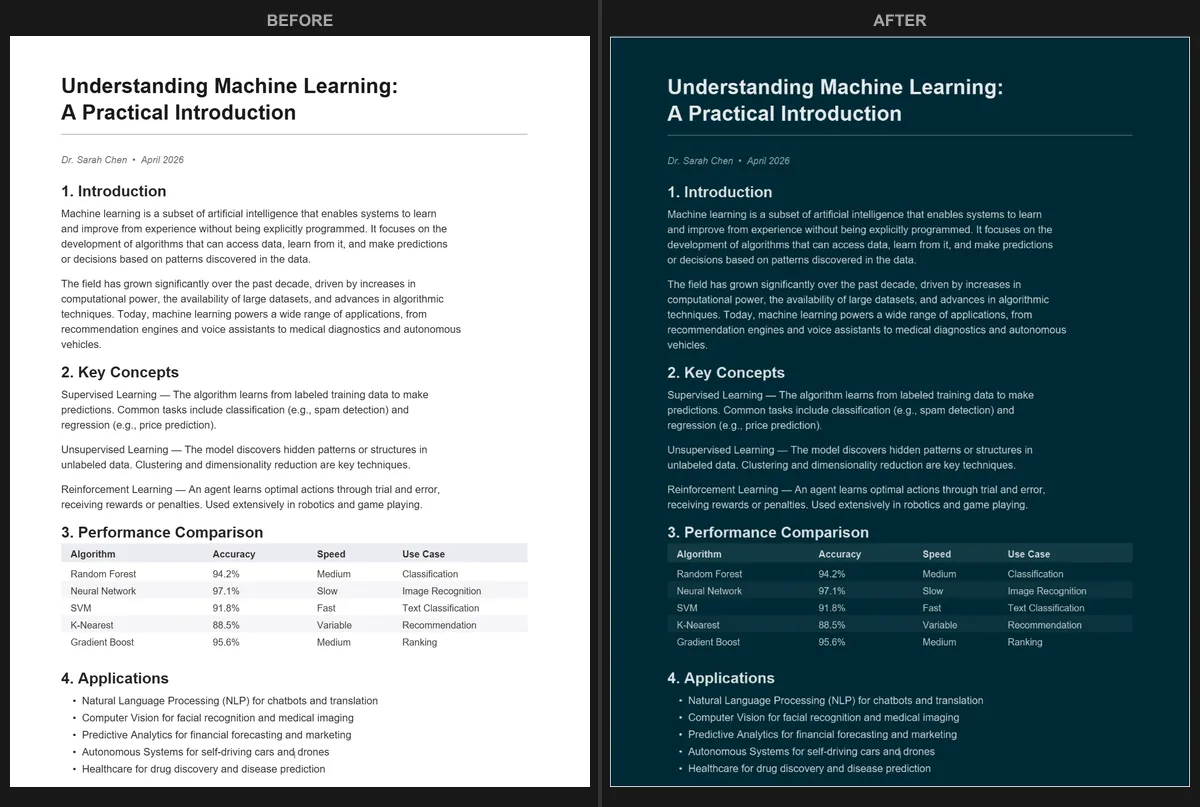
When you open a PDF in any modern browser, you get the browser's dark chrome around a stubbornly white page. That is not a bug you are missing a setting for - it is how every built-in PDF viewer is built. I maintain the PDF Dark Mode Converter, and "why won't my browser just dark-mode the PDF?" is the question I get most. This guide walks through what each browser actually offers, where the limits are, and the one approach that works the same everywhere.
Why no browser darkens PDFs (the real reason)
Browsers render a PDF page onto a canvas - essentially a bitmap. Your browser's dark theme is CSS that styles HTML elements; it has no hook into the pixels drawn on that canvas. So toggling the browser to dark recolors the toolbar, the tab strip, and the menus, but the document area is a sealed image as far as the theme engine is concerned. This is the same in Chrome, Edge, and Firefox, which is why the "fix" in one browser rarely behaves like the next.
Chrome
Chrome has the most-searched PDF viewer and the least to offer for dark mode. The built-in viewer gives you zoom, rotation, and fit-to-page - no color controls. Setting Chrome itself to dark does nothing to the page.
The one lever is an experimental flag. Visit chrome://flags/#enable-force-dark, set Auto Dark Mode for Web Contents to Enabled, and restart. Chrome will then try to invert colors across all web content, PDFs included. For a short, text-only document this can be good enough for a quick glance. The catches:
- It is a blunt inversion, so photos and charts come out looking like film negatives.
- It applies to every site you visit, not just PDFs - so you end up toggling it on and off.
- It is experimental and Google can change or remove it in any release.
If you want to understand why an inversion flag mangles images while a proper conversion does not, see how themed conversion differs from raw inversion on the main tool page.
Microsoft Edge
Edge ships the best built-in PDF reader of the three: text selection, search, annotations, and Read Aloud all work well. But like Chrome (they share the Chromium engine) it has no dark-mode button for the document. Setting Edge to dark via Settings > Appearance > Dark only darkens the interface.
Edge exposes the same force-dark experiment at edge://flags - search for "Auto Dark Mode for Web Contents", set it to Enabled, and restart. It has the identical trade-offs as Chrome's flag. Edge also has an Immersive Reader mode (the open-book icon in the address bar) that, for some text PDFs, reflows the content into a clean view where you can pick a dark page color. It only works on PDFs Edge can extract as text, and it discards the original layout - useful for plain reading, not for documents where formatting matters.
Firefox
Firefox uses its own viewer (pdf.js). It is solid for reading, but it has no color or dark-mode setting for page content, and there is no force-dark flag equivalent that reliably reaches it. People often try about:config tweaks or an extension like Dark Reader; both run into the same canvas wall - the PDF is drawn as an image the extension cannot restyle. You will occasionally get a partial effect, but never a consistent, shareable dark document.
The three browsers at a glance
| Browser | Built-in PDF dark mode | Workaround | How well it works |
|---|---|---|---|
| Chrome | None | chrome://flags force-dark | Inverts everything; images break; site-wide |
| Edge | None | edge://flags force-dark, or Immersive Reader | Same flag limits; Immersive Reader drops layout |
| Firefox | None | about:config / extensions | Unreliable - cannot reach the PDF canvas |
| Any browser | n/a | Convert the file to dark | Consistent, permanent, portable |
The approach that works in every browser
Instead of fighting each browser's renderer, change the document. The PDF Dark Mode Converter opens in Chrome, Edge, Firefox, or any browser, runs entirely on your device (your file is never uploaded), and writes a new PDF with the dark colors baked in. Drop the file in, pick from 16+ themes, and download. Because the darkness lives in the file, it looks identical no matter which browser - or which person you send it to - opens it next.
It also keeps the document's text selectable and searchable, which the flag-based inversions do not affect either way but many other converters quietly destroy. More on that in selectable text in dark mode PDFs.
Try it: open the PDF Dark Mode Converter in your browser, drop a PDF, and pick a theme. Free, private, no sign-up - and the result reads dark in every browser.
Frequently Asked Questions
No. Chrome, Edge, and Firefox each darken their own toolbars and menus, but none changes the colors inside a PDF. The page content stays white in every browser's built-in viewer.
The chrome://flags / edge://flags "Auto Dark Mode for Web Contents" setting forces inverted colors on web content and can partially darken simple PDFs. Results are inconsistent - images and charts get inverted - it is experimental, and it affects every website, not just PDFs.
No. Firefox's pdf.js viewer has no color setting for page content, and about:config tweaks or extensions cannot reliably reach the canvas the PDF is drawn on.
Converting the PDF to a dark file. The colors are baked into the document, so it looks the same in Chrome, Edge, Firefox, Safari, and any other viewer - with no flags to toggle.