PDF Dark Mode on iPad: How to Read Without Eye Strain
The iPad is one of the best devices for reading PDFs, but iPadOS dark mode only changes the system UI. PDF pages still show up with their original bright white background in Files, Safari, and most reader apps. If you use your iPad for studying, research, or nighttime reading, here is how to get a real dark background.
Convert the PDF in Safari
- Open PDF Dark Mode Converter in Safari on your iPad.
- Tap the upload button and select your PDF from Files, iCloud Drive, or any connected storage.
- Pick a theme from the dropdown. There are 16+ options including popular developer themes like Dracula, Nord, and Solarized.
- The converted PDF downloads automatically. Open it in Files, GoodNotes, Notability, or any reader.
The tool runs entirely in Safari. Your file stays on your iPad and is not sent to any server. Even large textbooks convert in seconds thanks to GPU-accelerated processing.
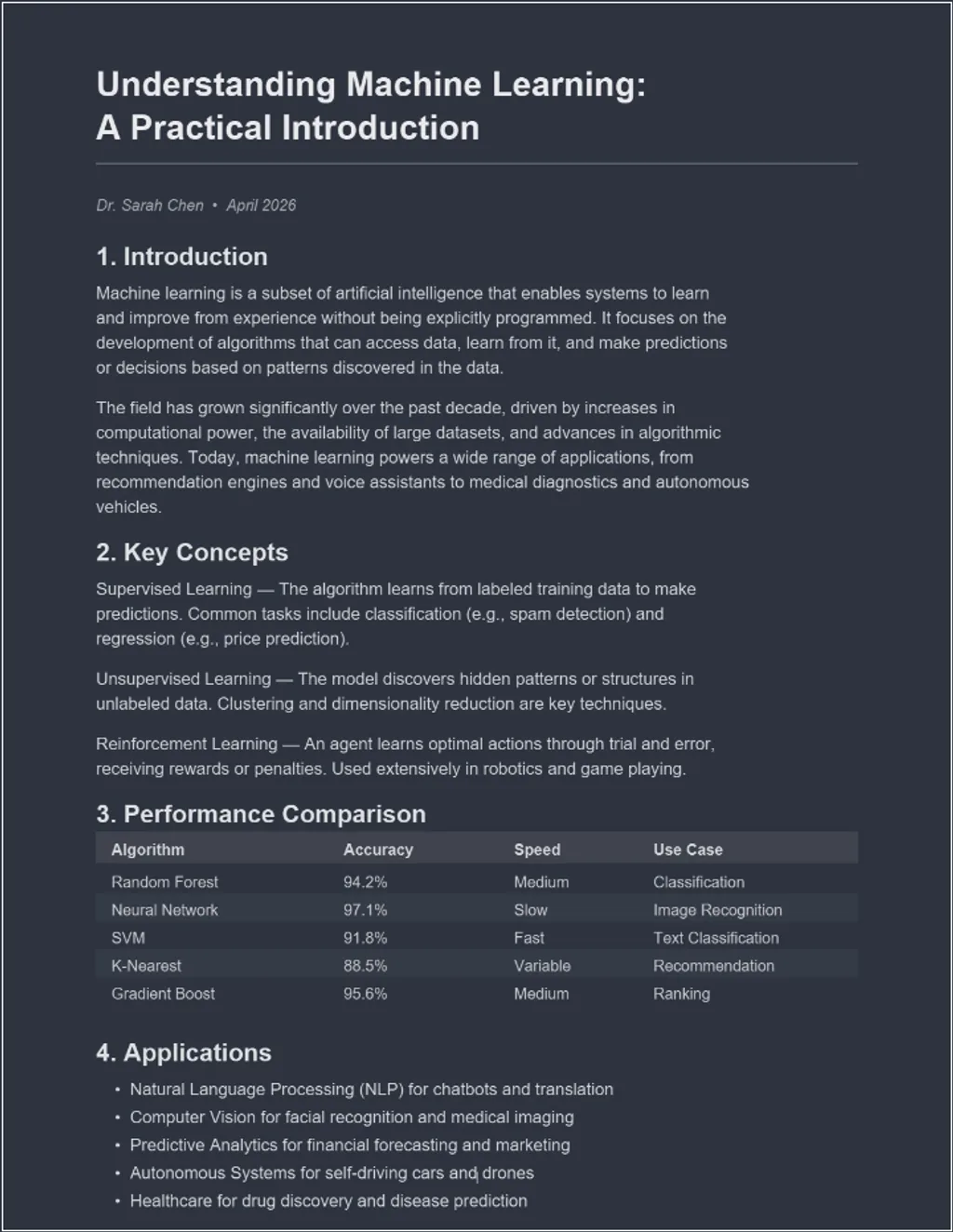
Works with note-taking apps
If you use GoodNotes, Notability, or PDF Expert with Apple Pencil, you can annotate the dark-mode PDF just like any other document. The dark background is part of the file itself, so your annotations, highlights, and drawings work normally on top of it.
What about Smart Invert on iPad?
iPadOS has Smart Invert (Settings > Accessibility > Display & Text Size > Smart Invert), which inverts most colors on screen while trying to preserve images. The results with PDFs are hit-or-miss. Some pages look acceptable, others have inverted diagrams or odd color shifts. And the inversion is only a display effect, not saved into the file.
Why converting is better for iPad users
- The dark background persists in any app, not just one specific viewer.
- You pick the exact theme and shade. The custom color option lets you enter any hex code.
- Annotations and highlights work normally on the converted file.
- Text remains searchable and selectable thanks to the built-in text layer.
- You can AirDrop or share the dark version and it looks the same on the other end.
For readers on smaller screens, see how to get dark mode on iPhone or Android. If you primarily read on a computer, check our Windows guide for platform-specific tips.
Get started: Open the PDF Dark Mode Converter on your iPad, choose a theme, and convert your PDF in seconds. Free, private, works right in Safari.
Frequently Asked Questions
No, iPadOS dark mode only changes the system interface. PDF pages remain in their original colors in Files, Safari, and reader apps.
Yes. Open the PDF Dark Mode Converter in Safari on your iPad, upload your PDF, and choose from 16+ themes. The converted file downloads instantly.
Yes, the converted PDF works in Apple Books, GoodNotes, Notability, PDF Expert, and any other iPad app that opens PDFs.