PDF Dark Mode in Microsoft Edge: A Complete Guide
Quick answer: Microsoft Edge has a built-in PDF reader that supports a limited dark mode through its "Force Dark Mode for Web Contents" flag. You can also use Edge's page color settings. For a permanent dark mode PDF you can use anywhere, convert your PDF with this free tool - it runs right in your browser, no upload required.
Edge's Built-In PDF Reader
Microsoft Edge includes a surprisingly capable PDF reader. When you open a PDF file in Edge, it displays directly in the browser tab without needing any plugins or extensions. The reader supports text selection, searching, annotations, and a read-aloud feature. It is one of the better built-in PDF viewers available in any browser.
However, Edge's PDF reader does not have an obvious "dark mode" button for PDF content. When you set Edge to dark mode (Settings > Appearance > Dark), the browser toolbar and menus turn dark, but the PDF pages themselves stay white. Sound familiar? It is the same issue Adobe Acrobat has.
Method 1: The Force Dark Mode Flag
Edge has an experimental feature that forces dark colors on all web content, including PDFs. Here is how to enable it:
- Open Edge and type edge://flags in the address bar.
- Search for "Force Dark Mode for Web Contents" or "Auto Dark Mode for Web Contents".
- Change the setting from "Default" to "Enabled".
- Click Restart when prompted.
After restarting, Edge will attempt to apply dark colors to every web page and PDF you view. This can work reasonably well for simple text-heavy PDFs, but there are drawbacks:
- Images look wrong. The flag inverts or shifts colors across the entire page, including photos, logos, and charts. If your PDF has any visual elements, they will look washed out or have inverted colors. For a deeper look at why this happens, see our comparison of dark mode vs. color inversion.
- Inconsistent results. Some PDFs look fine, others look terrible. The algorithm was designed for web pages, not PDF documents, so the results vary widely.
- It affects everything. Once enabled, every website you visit also gets forced dark mode. Some sites handle it well; many do not. You will find yourself toggling this flag on and off.
- It is experimental. Microsoft could change, break, or remove this flag in any Edge update without warning.
Method 2: Edge's Read Aloud and Immersive Reader
For some PDFs, you can use Edge's Immersive Reader mode, which strips away formatting and presents text in a clean, customizable view. To try it:
- Open a PDF in Edge.
- Look for the Immersive Reader icon in the address bar (it looks like an open book).
- If available, click it and then change the background color to dark.
This only works with text-based PDFs that Edge can parse into flowing text. Scanned documents, complex layouts, and PDFs with columns or tables will not work with Immersive Reader. It is nice when it works, but it rarely works for the documents where you need it most.
Method 3: Convert the PDF Permanently
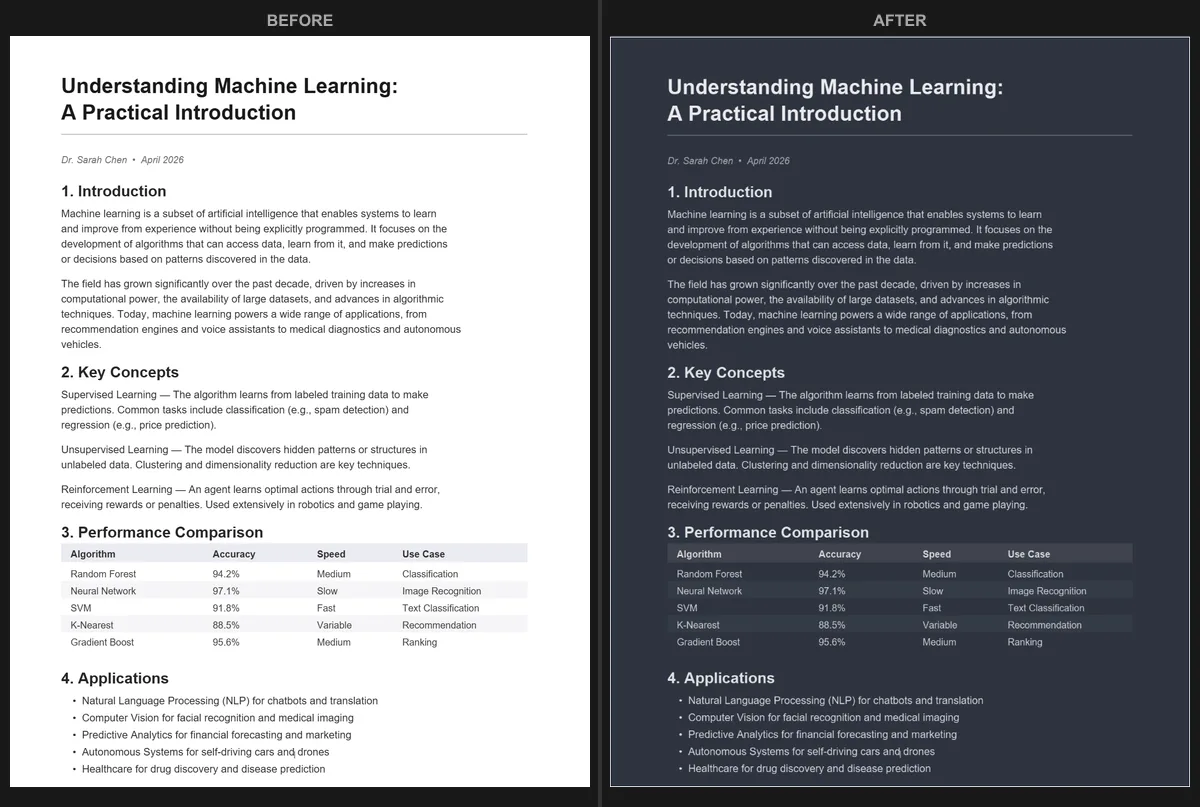
The most reliable way to read a dark mode PDF in Edge (or anywhere else) is to convert the PDF itself. The PDF Dark Mode Converter lets you do this directly in your browser:
- Open the converter in Edge (or any browser).
- Drop your PDF file onto the page.
- Choose from 16+ themes - true dark, warm dark, sepia, dark blue, and more.
- Download the converted file.
The entire process happens locally on your computer. Your PDF does not get uploaded to any server, which means your documents stay private. The conversion is GPU-accelerated, so even 100+ page documents finish in seconds.
Once converted, the dark mode PDF works everywhere: Edge, Chrome, Firefox, Adobe Reader, your phone, your tablet, or any other PDF viewer. There is nothing to configure and no settings to remember.
Comparing the Three Methods
Here is how the approaches stack up:
Force Dark Mode flag is fast to enable but unreliable. Good for a quick glance at a short document, but not something you want on all the time. It does not produce a file you can share.
Immersive Reader works beautifully when it works, but it only handles simple text PDFs and strips all formatting. Useless for documents with figures, tables, or complex layouts.
Converting the PDF takes a few extra seconds upfront, but the result is a real dark mode document that looks right everywhere, preserves all formatting and images, and can be shared with others. If you read PDFs regularly in the evening, converting them is the most practical long-term solution.
Using Edge With Other Dark Mode Tools
If you use Edge as your main browser, you can also combine approaches. For example:
- Keep Edge's system theme set to Dark for comfortable browsing overall.
- When you receive a PDF you need to read at night, open the converter in a new tab, convert it, and open the dark version.
- Use Windows Night Light (Settings > System > Display > Night Light) alongside dark mode to reduce blue light. This is especially helpful for late-night reading sessions.
If you use Chrome instead of Edge, we also have a guide for PDF dark mode in Chrome that covers similar options.
Frequently Asked Questions
Does Edge support dark mode for PDFs natively?
Not out of the box. Edge's dark mode setting only affects the browser chrome (toolbars, menus, tabs), not the PDF content area. The Force Dark Mode flag is an experimental workaround, not an official feature.
Will the Force Dark Mode flag break other websites?
It can. The flag applies dark color transformation to all web content, and many sites were not designed with this in mind. You may see readability issues, invisible text, or odd-looking graphics on some pages.
Can I use Edge on my phone to read dark PDFs?
Edge mobile has limited PDF support and does not have the flags system. Your best option is to convert the PDF with the converter tool on your computer (or phone browser) and then read the converted file.
Want dark mode PDFs that work perfectly in Edge and everywhere else? Convert your PDF now - free, private, no account needed.
Frequently Asked Questions
Edge does not have a built-in PDF dark mode. Its dark theme only changes the browser interface, not the PDF content area.
Type edge://flags in the address bar, search for Force Dark Mode for Web Contents, set it to Enabled, and restart Edge. Results on PDFs are inconsistent.
Yes. Use the PDF Dark Mode Converter to create a new PDF with dark colors baked in. The converted file looks dark in Edge and every other viewer.