PDF Dark Mode in Chrome: A Practical Guide
Chrome is the most popular browser for reading PDFs, but it does not have a dark mode toggle for PDF files. When you open a PDF in Chrome, you get bright white pages regardless of your system theme. Here are the options that actually work.
Option 1: Convert the PDF (fastest, permanent)
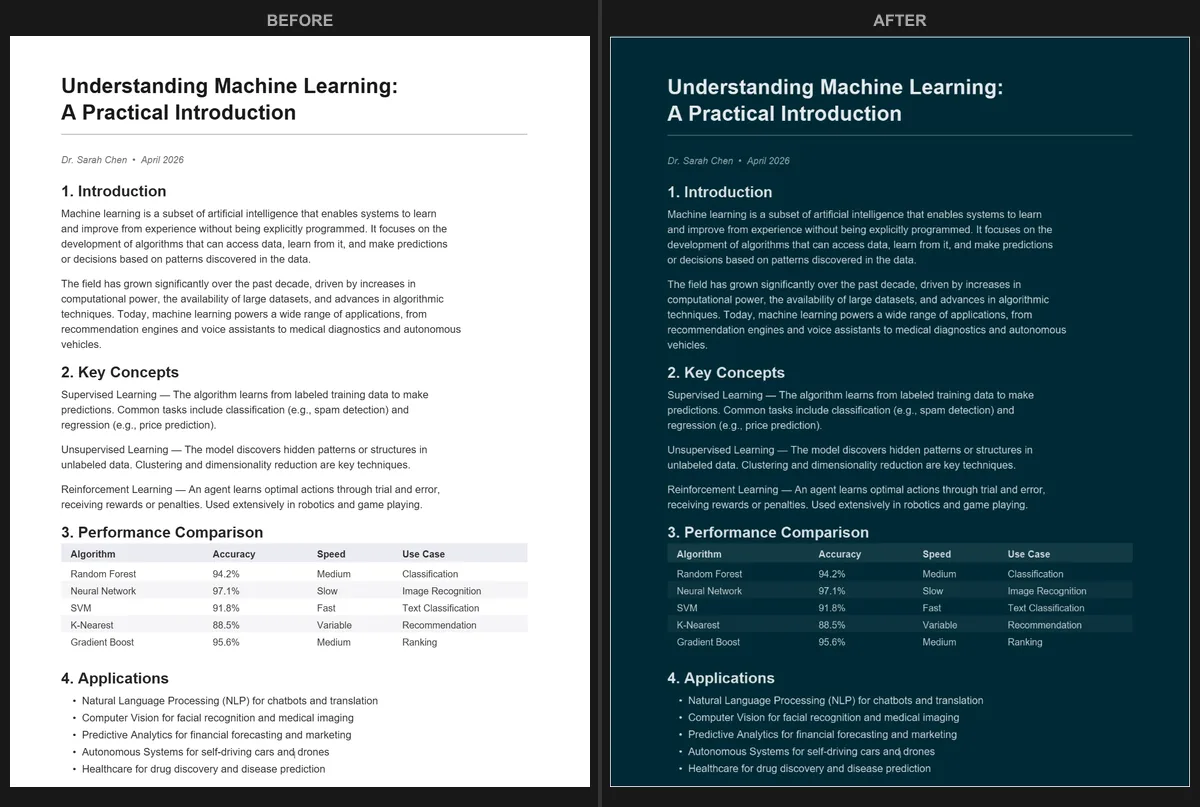
The simplest approach is to convert the PDF to dark mode and download a new file. Open the PDF Dark Mode Converter in Chrome, drop your PDF onto the page, and pick a theme. The converted PDF downloads in seconds.
This works well because:
- The dark colors are permanent in the file. Open it anywhere and it stays dark.
- You get 16+ themes to choose from (Dracula, Nord, Solarized, and many more).
- The conversion uses your GPU so even large documents finish quickly.
- Your file never leaves your device. Everything runs locally in Chrome.
Option 2: Chrome's Auto Dark Mode flag
Chrome has an experimental flag called Auto Dark Mode for Web Contents. You can enable it by visiting chrome://flags/#enable-force-dark and setting it to Enabled. This darkens most web pages, but the results on PDFs are unpredictable. Images often get inverted, colors can look washed out, and the effect varies from one PDF to another.
If you just want a quick glance at a short document, this might be good enough. For anything you plan to read carefully or share with others, a proper conversion gives more consistent results.
Option 3: Dark mode browser extensions
Extensions like Dark Reader work great for websites but often struggle with PDFs. Chrome's built-in PDF viewer renders pages on a canvas element, which many extensions cannot modify reliably. You may see partial darkening, inverted images, or no change at all.
Some extensions designed specifically for PDF viewing exist, but they require extra permissions and configuration. For most people, converting the file directly is simpler and more reliable.
What about Chrome's built-in PDF viewer settings?
Chrome's PDF viewer does not offer a dark mode setting. The only options are zoom, rotation, and fit-to-page. Google has not added a dark mode toggle to the PDF viewer, and there is no indication they plan to.
If you use a different browser, see our guides for Firefox dark mode or Microsoft Edge dark mode for similar workarounds.
Quick fix: Open the PDF Dark Mode Converter in Chrome, convert your PDF in seconds, and keep the dark version for comfortable reading. Free, private, no account needed.
Frequently Asked Questions
No, Chrome does not have a built-in dark mode for PDFs. The PDF viewer only offers zoom, rotation, and fit-to-page controls with no color options.
The Auto Dark Mode flag can partially darken PDFs, but results are inconsistent. Images often get inverted and colors may look washed out.
Yes. Use the PDF Dark Mode Converter to create a new PDF file with dark colors baked in. The converted file stays dark in any viewer or device.