Selectable Text in Dark Mode PDFs: Why Most Tools Break It
You convert a PDF to dark mode, open the result, and try to copy a paragraph. Nothing happens. You try to search for a word. No results. The text is right there on the page, but your PDF reader treats it like a picture. This is one of the most common and frustrating problems with PDF dark mode tools, and most users do not realize it is happening until they need to actually use the text.
Why most dark mode tools destroy your text
To understand the problem, you need to know how a standard PDF stores content. A typical PDF is not a simple image. It contains structured text data: individual characters with font information, positions, and encoding. This is what allows you to select a word, copy a sentence, or search through a 200-page document in seconds.
When most dark mode tools process your PDF, they do something called rasterization. They render each page as a flat image (like a screenshot), apply the color transformation to that image, and then wrap the result into a new PDF. The output looks dark, but the structured text data is gone. Every page is now a photograph of text rather than actual text.
This means:
- No text selection - you cannot highlight a sentence or paragraph
- No copy-paste - you cannot extract a quote or citation
- No search - Ctrl+F / Cmd+F finds nothing
- No accessibility - screen readers cannot read the document
- No annotation - text-based markup tools stop working
- Larger file sizes - images take more space than structured text
For a one-page flyer, this might not matter. For a 50-page research paper or a textbook you reference regularly, losing searchable text is a serious problem.
How text layers solve this
The solution is a technique called a hidden text layer. Instead of throwing away the original text data, the converter keeps it and positions it invisibly on top of each page image. The result is a PDF with two layers:
- Visual layer - the dark-themed page image you see on screen
- Text layer - invisible, perfectly aligned text that your PDF reader can interact with
When you select text in the converted PDF, you are actually selecting from the hidden text layer. When you search, your reader scans the text layer. When a screen reader processes the document, it reads the text layer. The visual appearance is dark; the functional text underneath is fully intact.
This is exactly how the PDF Dark Mode Converter works. Every converted page includes a synchronized text layer, so you keep full text functionality in the output.
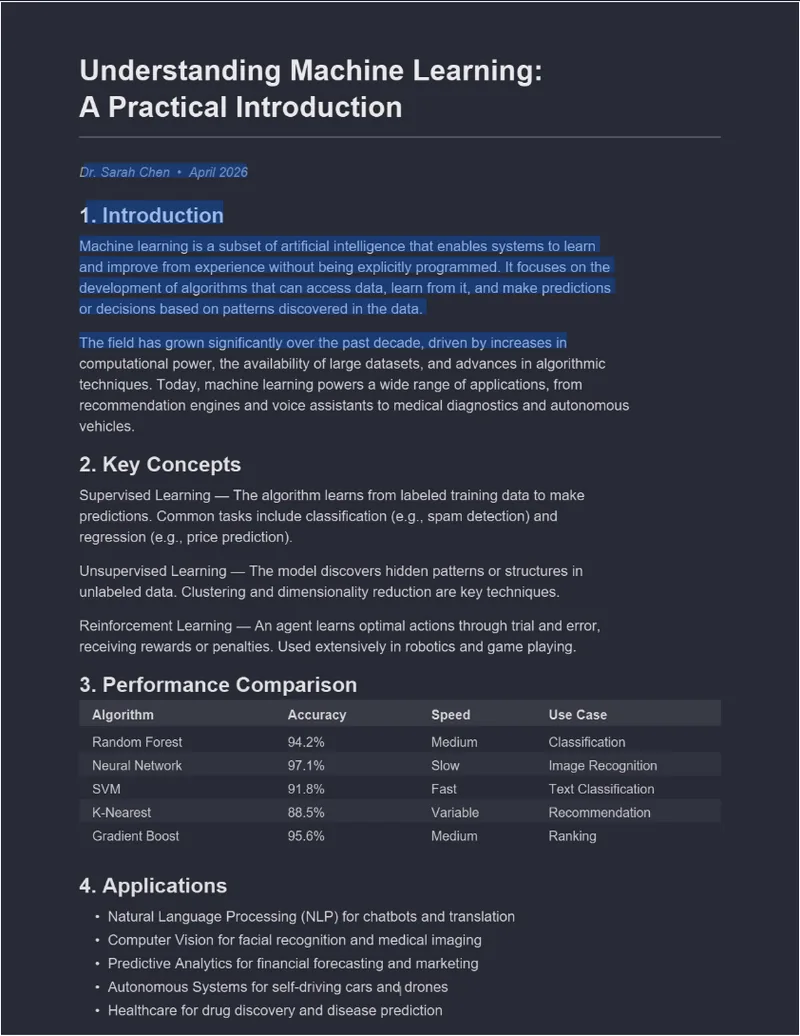
What you can do with preserved text
A dark mode PDF with an intact text layer behaves exactly like a normal PDF in every way except the visual colors:
Search within the document
Press Ctrl+F (or Cmd+F on Mac) and search for any word or phrase. This is critical for textbooks, technical documentation, and legal contracts where you need to find specific sections quickly. Without a text layer, you would have to scroll through every page manually.
Copy and paste text
Select any passage and copy it into your notes, email, or word processor. Students working with dark mode converted textbooks can still extract quotes for essays. Researchers can pull citations without retyping them.
Annotation and highlighting
Text-based annotations in PDF readers depend on the text layer. You can highlight sentences, add inline comments, and create text-linked bookmarks. These features break completely in image-only dark mode PDFs.
Accessibility and screen readers
Screen readers like JAWS, NVDA, and VoiceOver rely on the PDF text layer to read content aloud. An image-only dark mode PDF is completely opaque to assistive technology. Preserving the text layer means your dark mode PDFs remain accessible to visually impaired users - the dark theme helps sighted users while the text layer serves everyone.
File size
PDFs with text layers can be more efficient in size compared to purely image-based conversions at high resolution. The text data itself is compact. The page images can use moderate JPEG compression while the text layer ensures nothing is lost in terms of content fidelity.
When text preservation has limits
The text layer is reconstructed from whatever text data exists in the original PDF. This works perfectly for most documents, but there are cases where you should set expectations:
Scanned PDFs
If your PDF is a scan of a printed page (common with older academic papers, government forms, and archived documents), there is no text data to preserve. The original is already an image. The dark mode converter will darken it, but there is no text layer to carry over because one never existed. If you need selectable text from a scanned document, run it through OCR (Optical Character Recognition) software first, then convert to dark mode.
Complex layouts
Documents with unusual text positioning - overlapping elements, rotated text, or non-standard fonts - may have slight alignment differences between the visible text and the selectable text layer. For standard documents like research papers, textbooks, reports, and articles, alignment is effectively perfect.
Right-to-left and vertical text
Arabic, Hebrew, and vertical CJK (Chinese/Japanese/Korean) text present additional layout challenges. The text layer typically preserves the characters correctly, but selection behavior may vary depending on your PDF reader's support for these scripts.
How to check if your dark mode PDF has selectable text
After converting a PDF to dark mode, you can verify the text layer in seconds:
- Open the converted PDF in any PDF reader (Adobe Acrobat, Chrome, Firefox, Preview, etc.)
- Try to select some text by clicking and dragging across a paragraph
- If text highlights in blue (or your reader's selection color), the text layer is working
- Press Ctrl+F and search for a word you can see on the page - if it finds the word, text search is functional
If neither selection nor search works, the tool that converted your PDF rasterized it into flat images.
Comparing approaches
Not all methods of getting dark mode PDFs handle text the same way:
| Method | Keeps text selectable? | Notes |
|---|---|---|
| PDF Dark Mode Converter | ✅ Yes | Hidden text layer preserved automatically |
| OS-level color inversion | ✅ Yes | Display-only; original PDF unchanged |
| Browser extensions (Dark Reader etc.) | ⚠️ Varies | Often fails on PDF canvas elements |
| Screenshot-based converters | ❌ No | Rasterizes to flat images, text lost |
| Simple image-based PDF converters | ❌ No | Each page becomes a single image |
For a deeper comparison of dark mode versus color inversion, see PDF Dark Mode vs. Inverting Colors: What Is the Difference?.
Keep your text, lose the glare. The PDF Dark Mode Converter preserves selectable text in every conversion. 16+ themes, GPU-accelerated, free, private, no account needed.
Frequently Asked Questions
Yes, if the converter preserves the text layer. The PDF Dark Mode Converter embeds an invisible text layer underneath the dark page images, so you can select, copy, search, and annotate text normally in any PDF reader.
Most dark mode tools rasterize each page into a flat image, destroying the original text data. The result is a picture of text rather than actual text. Tools that preserve a hidden text layer avoid this problem.
Scanned PDFs are already images with no embedded text data. The converter cannot create text from an image. If your original PDF has no selectable text, the converted version will not either. You would need OCR software first.
Yes. The hidden text layer is fully accessible to screen readers, just like in the original PDF. The visual dark mode transformation does not affect the underlying text structure.