How to Invert PDF Colors: Methods That Actually Work
Quick answer: You can invert PDF colors using your operating system's accessibility settings (instant but affects your whole screen), your PDF reader's built-in options, or by using the Invert PDF Colors tool for true color inversion. For themed dark mode with 16+ options, try the PDF Dark Mode Converter - all free, all without uploading your file.
What Does Inverting PDF Colors Mean?
Color inversion takes every color in an image and replaces it with its opposite. White becomes black, black becomes white, blue becomes orange, red becomes cyan, and so on. When applied to a standard PDF (black text on a white background), inversion produces white text on a black background - essentially a crude form of dark mode.
Inversion is a blunt tool. It works well for simple text documents, but the moment your PDF includes photos, colored charts, logos, or diagrams, things get messy. A blue bar chart becomes orange. A photo of a sunset looks like a photo from another planet. If your goal is just comfortable reading, there are better options. But if you specifically need true color inversion, here are the methods that work.
Method 1: OS-Level Color Inversion
Every major operating system has an accessibility feature that inverts colors across the entire screen. This is the fastest way to invert a PDF because there is nothing to install or configure - just toggle a setting.
Windows:
- Press Windows key + Ctrl + I to toggle color inversion on and off instantly.
- Or go to Settings > Accessibility > Color filters, enable color filters, and select "Inverted."
macOS:
- Go to System Settings > Accessibility > Display and check "Invert colors."
- You can use "Smart Invert" which tries to keep images and media in their original colors while inverting everything else. This works better than full inversion for most PDFs.
iOS / iPadOS:
- Settings > Accessibility > Display & Text Size > Smart Invert (or Classic Invert).
- You can also add this to the Accessibility Shortcut (triple-click the side button) for quick toggling.
Android:
- Settings > Accessibility > Color inversion (or "Color correction" depending on your device).
The advantage of OS-level inversion is speed: it is instant, and you can toggle it with a keyboard shortcut. The disadvantage is that it inverts everything on your screen. Your desktop, your browser tabs, your chat windows - all of it becomes inverted. You have to toggle it back off when you finish reading, and it can be disorienting switching back and forth.
Method 2: PDF Reader Built-In Inversion
Some PDF readers have their own color inversion or dark mode built in, which only affects the PDF and not your entire screen.
Adobe Acrobat Reader: Go to Edit > Preferences > Accessibility, check "Replace Document Colors," and select a high-contrast scheme. This is not true inversion, but it achieves a similar result. Read our full guide on dark mode in Adobe Acrobat.
Foxit Reader: View > Page Display > Night Mode. This inverts the page colors within the reader.
KDE Okular (Linux): Settings > Configure Okular > Accessibility > Change colors. Offers "Invert Colors" and "Change Paper Color" options.
The advantage here is that only the PDF is affected, not the rest of your screen. But these features are viewer-specific and display-only - the actual PDF file is unchanged. If you send it to someone, print it, or open it on a different device, it will show its original colors.
Method 3: Browser-Based Tricks
If you read PDFs in your web browser, there are a couple of tricks:
- Chrome/Edge Force Dark Mode flag: Type
chrome://flagsoredge://flags, search for "Force Dark Mode for Web Contents," and enable it. This attempts to invert web page and PDF colors in the browser. Results vary widely. See our guides for Chrome and Edge. - Browser extensions: Extensions like Dark Reader apply dark colors to web content, including PDFs opened in the browser. They work better than the Force Dark flag for some documents, but still struggle with images and complex layouts.
Method 4: Convert the PDF Properly
All the methods above are display-only workarounds. They do not change the PDF file itself. If you want a PDF that is genuinely inverted, the Invert PDF Colors tool is the fastest way. It defaults to true RGB complement inversion and runs entirely in your browser. If you prefer a tinted dark mode with 16+ theme options instead, the PDF Dark Mode Converter has you covered.
The converter runs entirely in your browser with no file uploads. Drop your PDF on the page, choose your theme, and download a new version with the colors transformed. The result is a real PDF file that looks dark in every reader, on every device, without any settings or toggles.
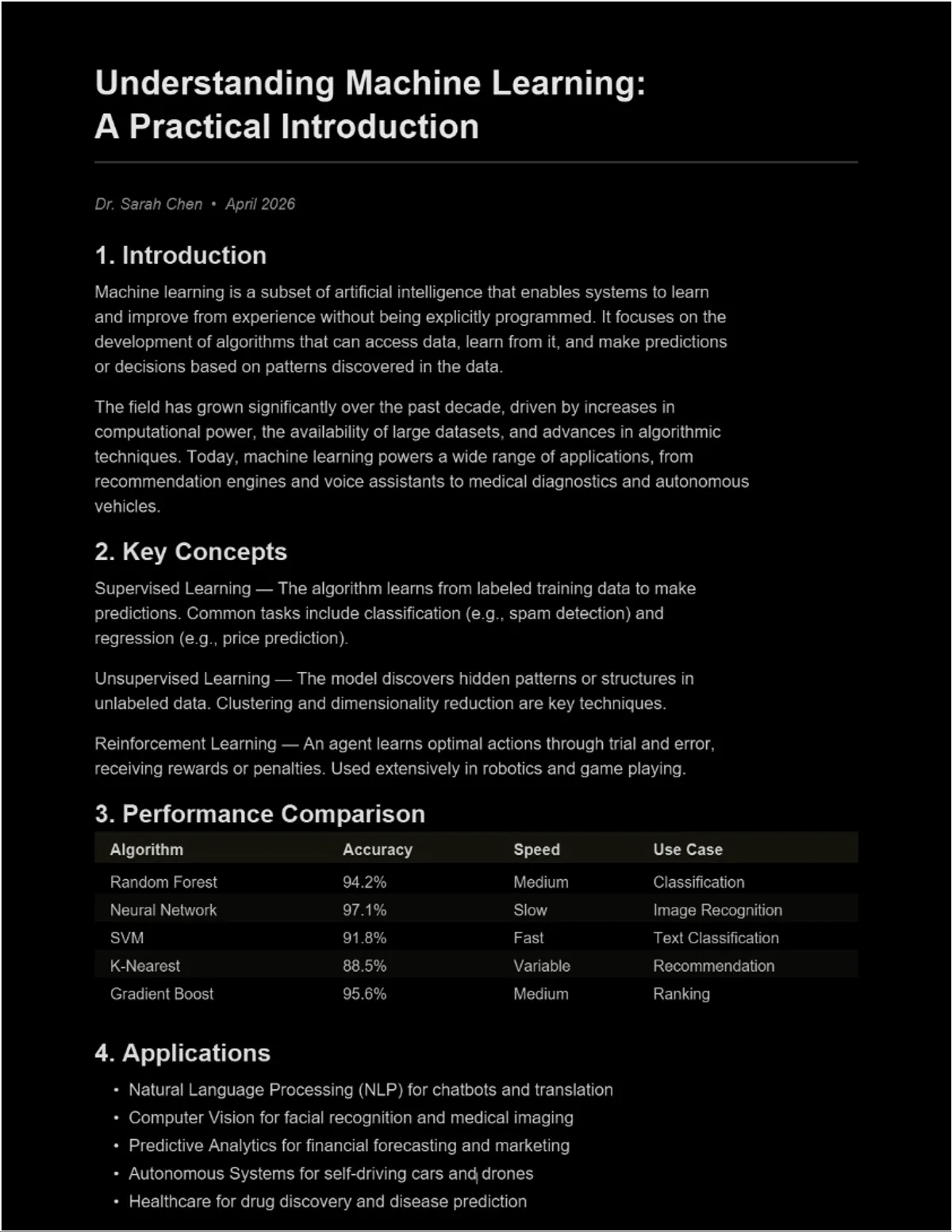
Unlike simple inversion, the converter offers intelligent color transformation. Dark mode themes adjust text and background colors while handling images and colored elements more carefully than a raw invert. You can also choose from warm tones, sepia, blue-gray, and other themes that are easier on the eyes than pure black-and-white inversion.
Which Method Should You Use?
It depends on your situation:
- Need it right now for a quick read? Use OS-level inversion. One keyboard shortcut and you are done. Just remember to toggle it off when you are finished. On Windows, you can also use the OS-level inversion directly - see our Windows PDF dark mode guide for details.
- Read a lot of PDFs on the same computer? Set up your PDF reader's built-in dark mode or accessibility colors. It stays on between sessions and only affects PDFs.
- Want a permanently dark PDF you can share or read anywhere? Convert it. This takes 10 seconds and produces a file that works on every device.
- Need true color inversion specifically (not dark mode)? Use the Invert PDF Colors tool for a permanent, downloadable inverted PDF. Or use OS inversion for a quick screen-level flip. For a detailed comparison, read our article on dark mode vs. inverting colors.

Frequently Asked Questions
Does inverting colors damage my PDF?
OS-level and reader-level inversion do not change the file at all - they are purely visual. Converting with a tool creates a new file with the new colors; your original file is untouched.
Why do images look weird when I invert?
Inversion flips every color to its opposite. A photo of a green forest becomes a magenta mess. This is the fundamental limitation of inversion compared to intelligent dark mode conversion.
Can I invert a PDF to save printer ink?
If you have a PDF with a dark background and want to make it light for printing, yes. Check out our guide on inverting PDFs for printing.
Need true color inversion? Invert PDF Colors - instant, permanent, private.
Want dark mode with 16+ themes? PDF Dark Mode Converter - GPU-accelerated, completely free.
Frequently Asked Questions
Inverting colors replaces every color with its opposite. White becomes black, black becomes white, and all other colors flip to their complementary values.
Yes, inversion flips all colors including images, making photos look like negatives. Dark mode conversion handles images more carefully than simple inversion.
Yes. The PDF Dark Mode Converter creates a new PDF file with transformed colors that are permanent. Your original file remains unchanged.